How to install a FiveM script after buying it
Updated 29 Oct 2026 · 2 min read
On this page
Paid FiveM scripts are delivered through Cfx.re's asset system rather than as a file in your email. This guide walks through getting a script from the store onto a running server. It applies to every Zerio script; each product's own installation page in the documentation lists anything extra it needs.
Before you buy: use the right Cfx.re account
Protected scripts (FiveM Asset Escrow) only start on a server whose license key belongs to the same Cfx.re account that bought the script. When you sign in at checkout, use the account that owns your server's sv_licenseKey.
If your hosting provider generated the license key for you, it may be registered to their account. In that case create your own key at the Cfx.re Portal and put it in your server.cfg before installing.
1. Download the script from the Cfx.re Portal
- Go to portal.cfx.re and sign in with the account you bought with.
- Open Granted Assets. Purchases usually show up within a minute or two.
- Download the latest version and unzip it somewhere temporary.
Always download from the Portal rather than reusing an old copy; it is the only place that has the current version.
2. Upload it to your server's resources folder
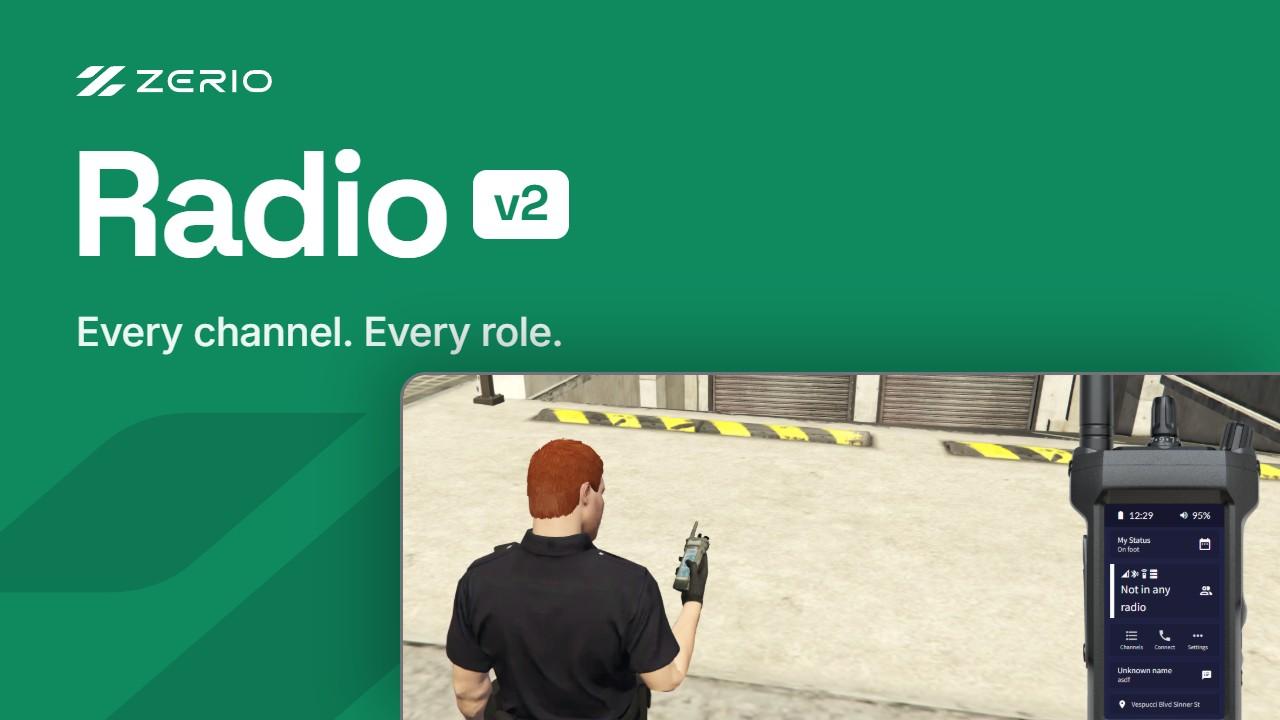
Copy the extracted resource folder into your server's resources directory, for example resources/[zerio]/zerio-radio. Keep the folder name exactly as it is in the download, because other resources and exports refer to it by name.
If you upload over FTP, transfer the files in binary mode. Some FTP clients convert line endings in ASCII mode, which corrupts escrowed files and causes the syntax error near <\1> error.
3. Import the SQL (if the script has any)
Look for a .sql file in the resource. If there is one, import it into your server's database with phpMyAdmin, HeidiSQL or the MySQL command line before starting the resource. Scripts without an SQL file create what they need themselves.
4. Add it to server.cfg
Add an ensure line for the resource after its dependencies (your framework, oxmysql, ox_lib, and so on):
ensure oxmysql
ensure es_extended   # or qb-core / qbx_core
ensure zerio-radio
5. Configure, then restart
Open the config files (usually in a config or shared folder) and set them up for your server: jobs, items, keybinds and language. Then restart the server, not just the resource, so FiveM refreshes your asset entitlements.
If it doesn't start
- "Lacking entitlement": the license key and the purchase are on different accounts. See how to fix lacking entitlement.
- "Syntax error near <\1>": the files were corrupted during upload. See how to fix syntax error near <\1>.
- Anything else: ask in our Discord. Support is included with every purchase.
 ESX
 QBCore
 QBox